Using the Age Map
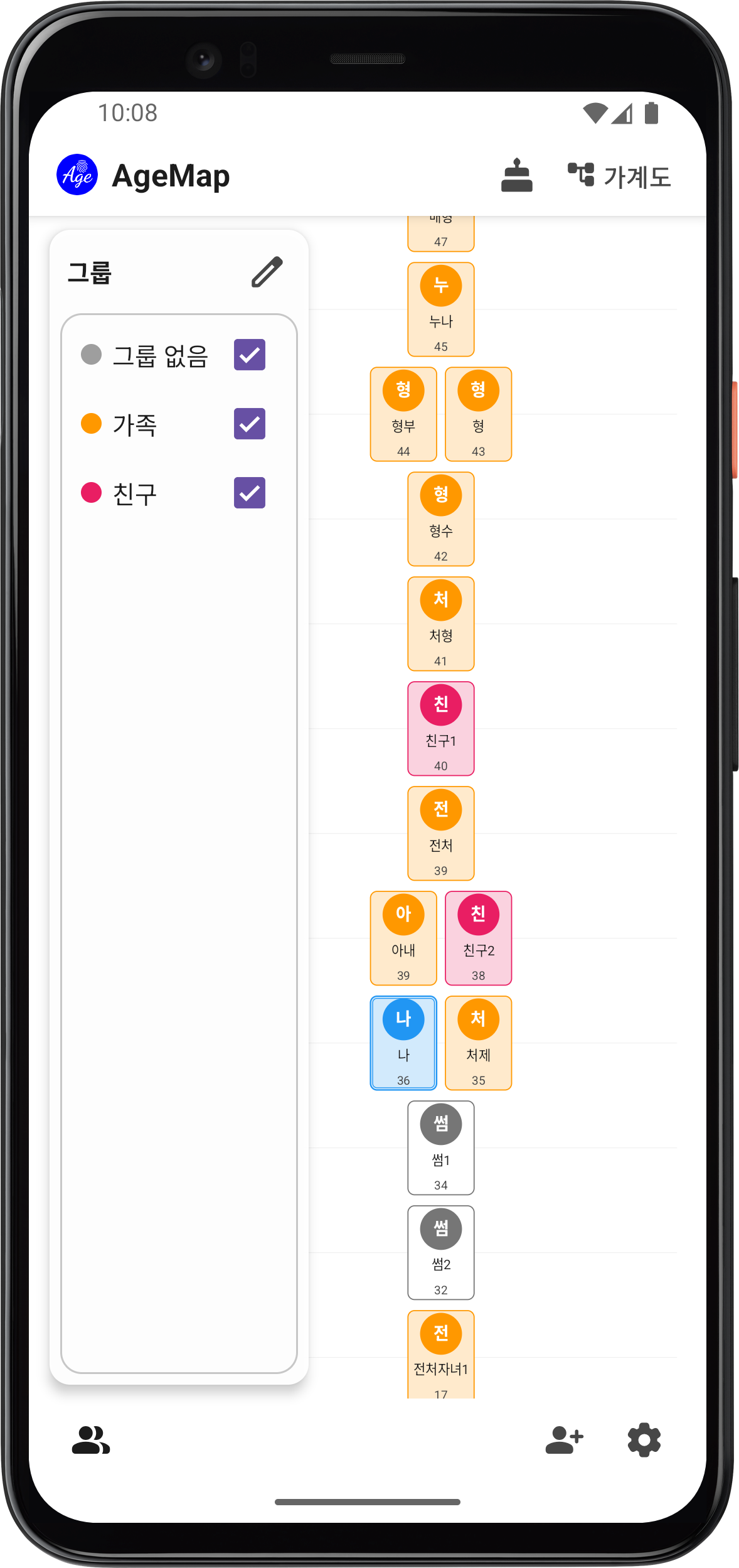
The Age Map is the core screen of AgeMap, displaying registered people visually sorted by age.
Screen Layout
- Main area — A graph with people arranged by age. Older at the top, younger at the bottom
- Top bar — Birthday reminder button and family tree mode toggle
- Right panel — Group list with checkboxes to filter which groups are shown
- Bottom — Add person button (+)
Gestures
- Pinch zoom — Zoom in/out with two fingers
- Drag — Pan the view with one finger
- Tap — Tap a person card to view details
Adding a Person
- Tap the + button at the bottom.
- Enter the name and date of birth.
- For lunar birthdays, toggle the lunar switch (auto-converted to solar).
- Select the groups they belong to.
- Optionally set a profile photo (camera or gallery).
- Tap save — they will be automatically placed on the age map.
Person Details
Tap a person card on the age map to see their details at the bottom of the screen.
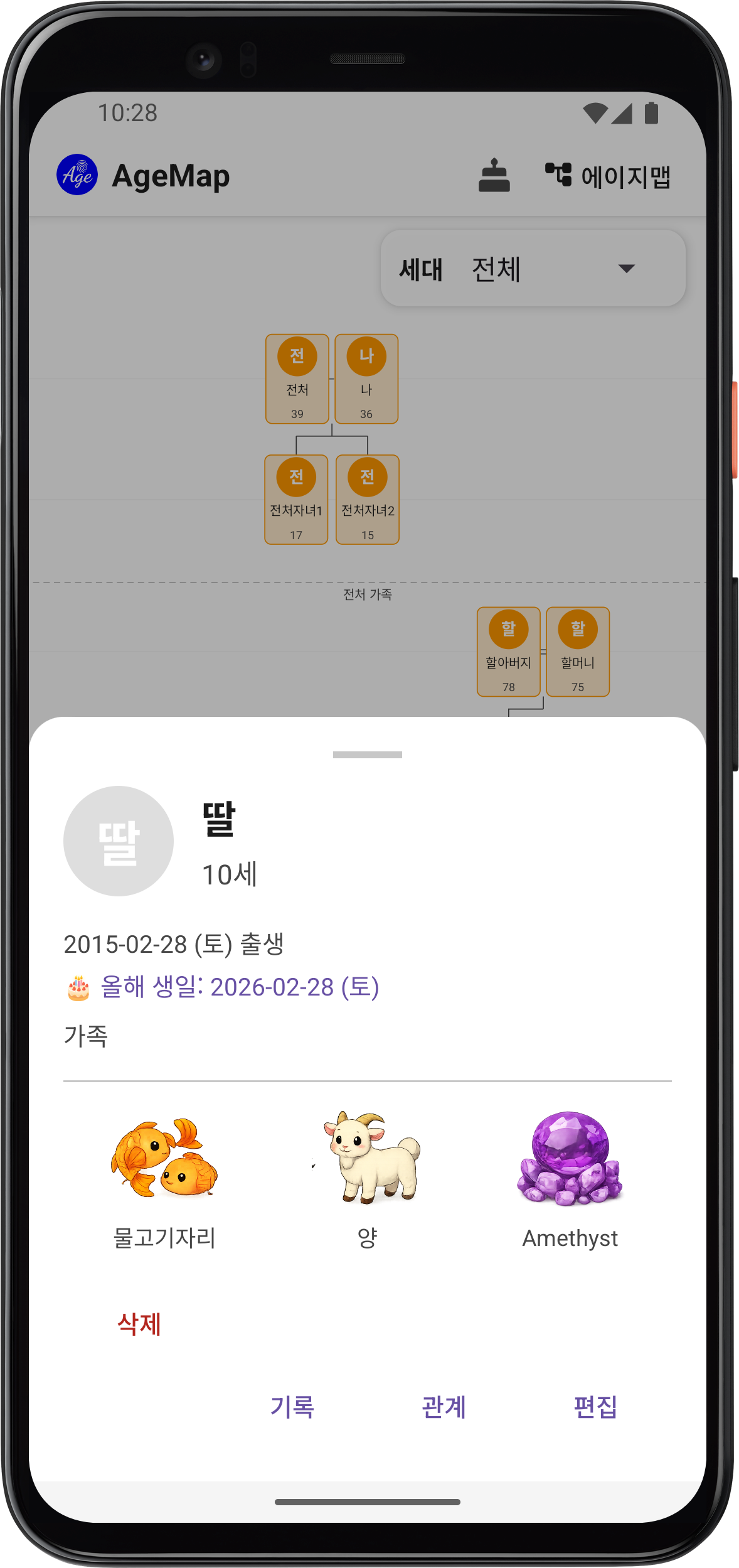
- Precise age in years, months, and days
- Days until next birthday
- Zodiac sign, birthstone, and oriental zodiac
- Groups and family relationships
Editing/Deleting a Person
- Edit — Tap the edit button in the person detail screen to modify name, birthday, groups, photo, etc.
- Delete — Tap delete in the person edit screen. This will also remove their relationships and moment records.
Setting "Me"
Mark yourself as "Me" in person edit to appear in all groups automatically and become the reference point on the age map.